
Seedance 2.0 Advanced: Step-by-Step AI Vlog Tutorial
Want an animated vlog without filming yourself or building a set? Seedance 2.0 can follow a storyboard image plus a character sheet in Full Reference mode and deliver a coherent clip. This Seedance tutorial walks through the full pipeline; you can use the Seedance Chinese version UI or any supported locale.
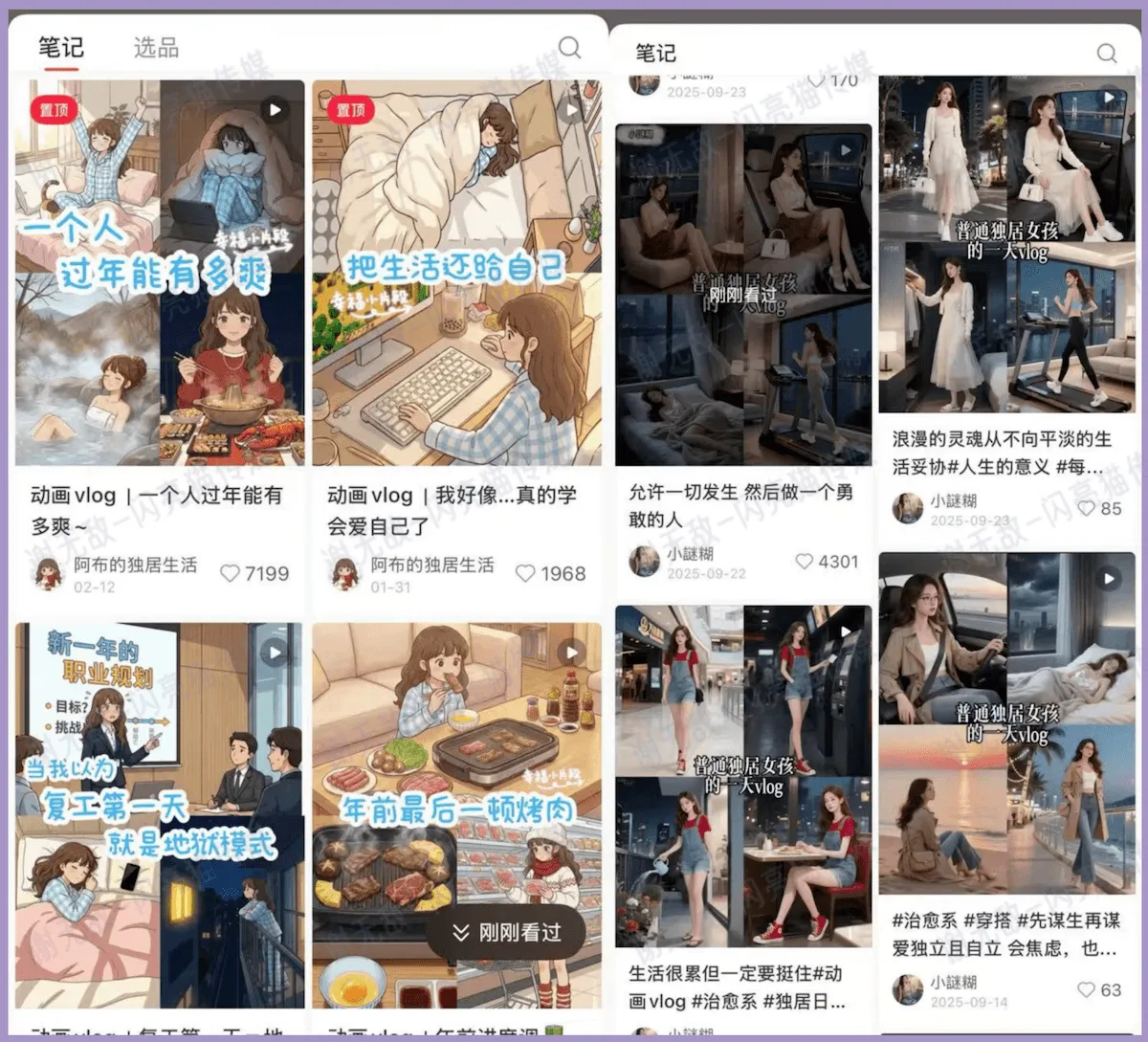
The steps below assume you already know your topic. To jump straight to the generator, use the button.
1. Build a storyboard first
A storyboard is the spine of the video. A table with duration, shot description, camera move, lighting/effects, and sound keeps the model from guessing wrong frames.
Steps:
- Pick a niche and angle (after-work routine, travel diary, workplace slice-of-life, etc.).
- Ask any AI assistant for a table-form storyboard with: duration, shot, camera, light/effects, sound.
- Example prompt (adjust topic and style as needed):
Reference a typical animated vlog pacing. Write a storyboard for [after-work daily vlog]: [commute home, cook, read, sleep]. Warm, cozy tone. Table format, total under 15 seconds, columns: duration, shot, camera, light/effects, sound.
- Screenshot the table and save it—you will upload it to Seedance 2.0.
Sample structure:
| Duration | Shot | Camera | Light / FX | Sound |
|---|---|---|---|---|
| 0–3s | Enter apartment, entryway lights on | Static, slight push-in | Warm indoor | Door, soft music |
| 3–7s | Kitchen prep, stove on | Top-down to side follow | Stove glow, light steam | Chopping, sizzle |
| 7–12s | Reading on sofa, desk lamp | Slow lateral move | Soft side light | Page turns, room tone |
| 12–15s | Lights out, fade to black | Pull back wide | Fade out | Music tail |
2. Create a main character sheet
AI video breaks when the face changes every shot. Generate one fixed character with text-to-image if you do not have art yet.
Example prompt:
You are an anime character designer. Create a ~25-year-old urban professional woman: short hair, defined nose bridge, large eyes, ~165 cm, normal skin tone, light grey casual suit, half-body cartoon illustration, clean background for video reference.
Save PNG/JPG alongside the storyboard screenshot.
3. Configure Seedance 2.0
- Open video generation and select Seedance 2.0.
- Set mode to Full Reference (全能参考)—required to use both character and storyboard images.
- Aspect ratio: 9:16 or 3:4 for vertical social; 16:9 for horizontal formats.
- Pick 1080P when your plan allows it.
4. Upload references and generate
- In the reference area upload: character image + storyboard screenshot (note order for @ tags).
- In the prompt box, constrain generation in one line, for example:
Strictly follow @Image1 for the character. Generate shots in the order of @Image2 storyboard. Warm cozy style, stable face, minimal shake, 1080P.
- Generate—typical wait 40–90 seconds.
- If one beat fails, adjust that row in the storyboard or strengthen its line in the prompt instead of redoing everything.
Note: Each run spends credits; new accounts often get daily free credits. Avoid double-clicking generate.
5. Post-production
Import into any editor (CapCut, Premiere, DaVinci), add captions, stickers, and BGM. Budget 10–15 minutes so subtitle timing matches room tone.
6. Quick recap
| Stage | Output | Tip |
|---|---|---|
| Plan | Topic & series hook | Start narrow for repeatable series |
| Storyboard | Table screenshot | Cap total duration, specify camera |
| Character | Hero sheet | One face across all shots |
| Generate | Seedance 2.0 clip | Full Reference + clear @ tags |
| Edit | Subtitles & SFX | Improves completion rate |
The Seedance 2.0 AI vlog loop: storyboard → character → Full Reference → clear prompt → generate & edit. Follow the table once and you can ship a vertical vlog in a short session.
Ready to try it? Upload your storyboard and character on the site—the workflow is available in all supported locales.
Related searches: Seedance 2.0, Seedance tutorial, AI vlog, animated short, Full Reference mode.